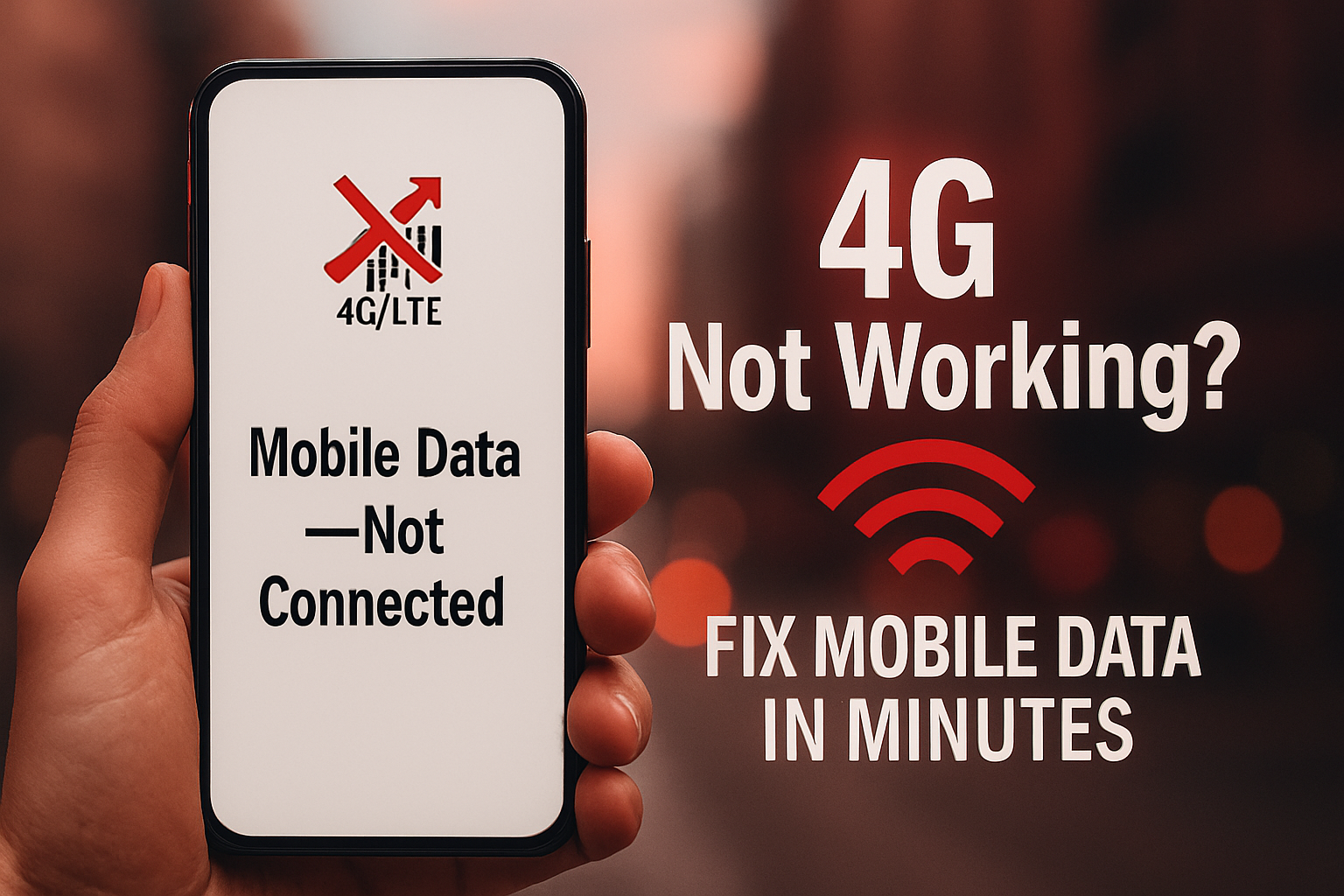
You are away from Wi-Fi and need to use the internet, but your Android phone shows the 4G or LTE icon yet nothing loads. Or worse, you see "Mobile Data — Off" even though you have data enabled. Mobile data failures are frustrating, especially when you need to navigate, check messages, or make video calls.
This guide covers the ten most effective fixes for Android mobile data problems, covering every scenario from SIM card issues to APN misconfiguration.
Why Mobile Data Stops Working
Airplane mode was accidentally left on
APN (Access Point Name) settings are missing or incorrect
SIM card is not properly seated
Network mode is set to an incompatible standard
Carrier outage in your area
Software bug after an Android update
Data limit reached on your carrier plan
10 Fixes for Mobile Data Not Working on Android
Fix 1: Toggle Airplane Mode
This is the single most effective quick fix. It forces your phone to disconnect and reconnect to your carrier's network, resolving most temporary connection glitches.
Pull down the Quick Settings panel
Tap Airplane Mode to turn it ON
Wait 15–20 seconds
Turn Airplane Mode OFF
Wait for the signal bars to appear, then test data
Fix 2: Make Sure Mobile Data Is Enabled
It sounds obvious, but mobile data is frequently disabled accidentally. Check Settings > Connections > Data Usage or Settings > Network and Internet > Mobile Network and confirm Mobile Data is toggled on.
Fix 3: Remove and Reinsert the SIM Card
A loose SIM card causes intermittent data failures. Power off your phone, eject the SIM tray, remove the SIM card, gently clean it with a dry cloth, reinsert it firmly, and power back on.
Fix 4: Check and Reset APN Settings
APN (Access Point Name) settings tell your phone how to connect to your carrier's data network. Incorrect APN settings are a very common cause of mobile data failure.
Go to Settings > Connections > Mobile Networks > Access Point Names
If the list is empty or incorrect, tap the menu (three dots) > Reset to Default
If that fails, contact your carrier for the correct APN settings
Common APN settings by major carriers: For most carriers, going to the carrier's website and searching "[Carrier Name] APN settings Android" gives you exact values to enter manually.
Fix 5: Select the Correct Network Mode
If your phone is set to a network mode that your carrier or area does not support, you will get no data connection.
Settings > Connections > Mobile Networks > Network Mode
Try LTE/3G/2G (Auto connect) or LTE/4G Auto
If you are in an area with poor 4G coverage, try forcing 3G temporarily
Fix 6: Check Your Data Plan and Usage
If you have used your monthly data allowance, your carrier may have throttled or cut off your data. Log in to your carrier's app or website, or dial their customer service number to check your remaining data.
Fix 7: Check for Carrier Outages
If your SIM card is working and settings are correct, the problem may be on your carrier's side. Check Downdetector.com, your carrier's official website, or their social media for outage reports in your area.
Fix 8: Update Carrier Settings
On some Android phones, carrier settings updates improve network compatibility and fix data issues. Go to Settings > About Phone > SIM Card Status or check for carrier settings under Software Update.
Fix 9: Restart Your Phone
After changing any network settings, always restart your phone to apply them fully. A restart also clears any temporary network state issues.
Fix 10: Reset Network Settings
If all else fails, reset your network settings to factory defaults. This fixes deep configuration issues without deleting your data.
Settings > General Management > Reset
Tap Reset Network Settings
Confirm the reset
Re-enter Wi-Fi passwords and recheck mobile data settings after restart
Check if Mobile Data Works in Another Location
Sometimes data failures are location-specific (poor signal area, network congestion, or local cell tower maintenance). Move to a different location or open area and test whether data works. If it does, your original location simply has poor coverage.
When to Contact Your Carrier
Contact your carrier's customer support if:
APN settings are correct but data still fails
You are within coverage area but show no signal
Other phones with the same SIM have data, but yours does not
You recently changed your plan, ported your number, or replaced your SIM
Conclusion
Mobile data problems on Android are almost always software or configuration issues rather than hardware failures. Toggling Airplane Mode, checking APN settings, and resetting network settings fix the vast majority of cases. Keep your APN settings saved somewhere secure so you can quickly restore them if needed in the future.
Learn More.................................